Network Lag Fix: 7 Powerful Ways to Reduce Gaming Lag
If you are experiencing high ping, sudden lag spikes, rubber-banding, packet loss, or delayed responses while playing online games, a proper Network Lag Fix can make a major difference. Network problems are one of the most common reasons online games feel slow or unresponsive, even when your gaming PC, console, or smartphone has good hardware.
In this complete guide, we will explain what causes network lag and show you practical ways to reduce ping, improve connection stability, and get a smoother online gaming experience.
What Is Network Lag?
Network lag is the delay between an action you perform in an online game and the game server receiving or responding to that action. For example, you may press a button to shoot, but the game reacts several milliseconds later.
Network lag is usually measured using ping or latency. Ping is measured in milliseconds (ms). Lower ping generally means a faster response between your device and the game server.
- Under 30 ms: Excellent for online gaming
- 30–60 ms: Very good
- 60–100 ms: Playable for most games
- 100–150 ms: Noticeable delay may occur
- 150+ ms: High latency and significant gaming delay
A good Network Lag Fix should focus not only on reducing ping, but also on preventing packet loss, jitter, and unstable connections.
What Causes Network Lag?
Network lag can have several different causes. Sometimes the problem is your internet connection, while in other situations the game server or routing between your ISP and the server may be responsible.
Common causes include:
- High internet latency
- Weak Wi-Fi signal
- Too many devices using the network
- Background downloads and uploads
- Packet loss
- Incorrect DNS configuration
- Distance from the game server
- Router problems
- ISP congestion
- Game server issues
Before changing advanced settings, identify whether the problem affects one game or every online activity. If only one game is affected, the issue may be related to its server or routing.
1. Check Your Internet Connection
The first step in any Network Lag Fix is checking your internet connection. Download speed alone does not determine gaming performance. Latency, upload speed, jitter, and packet loss are also important.
You can use a trusted internet speed testing service to check your connection. For example, you can use Speedtest to test your ping, download speed, and upload speed.
Run the test several times at different times of the day. If your latency becomes much higher during busy hours, your ISP network may be experiencing congestion.
2. Use Ethernet Instead of Wi-Fi
If possible, connect your gaming PC or console directly to your router using an Ethernet cable. Wired connections are usually more stable than wireless connections because they are less affected by interference and signal strength.
Ethernet can help reduce random ping spikes, wireless interference, and connection instability. This is especially useful for competitive games such as FPS, racing, battle royale, and fighting games.
If Ethernet is not possible, try to use the 5 GHz or 6 GHz Wi-Fi band when supported by your router and device.
3. Restart and Optimize Your Router
Your router manages traffic between your devices and the internet. A router that has been running continuously for a long time may occasionally experience temporary problems.
Turn off your router, wait around 30 seconds, and turn it back on. Then wait until the internet connection is fully restored before starting your game.
Router optimization tips
- Keep the router in an open location.
- Keep it away from large electronic devices.
- Update the router firmware when updates are available.
- Use a strong Wi-Fi password.
- Disconnect devices that are not needed.
- Use QoS if your router supports gaming traffic prioritization.
4. Close Background Applications
Applications running in the background can consume your internet bandwidth. Cloud synchronization, operating system updates, video streaming, downloads, and file-sharing applications may cause sudden lag during gaming.
Before starting an online game, close applications that you do not need. On Windows, open Task Manager and check which applications are using network resources.
Also pause large downloads while playing competitive online games. Even a fast internet connection can experience problems when upload or download traffic suddenly becomes heavy.
5. Choose the Correct Game Server
The physical distance between your location and the game server can have a major effect on latency. If a game allows you to manually select a server or region, choose the server closest to your actual location.
For example, players in India may get better latency when connecting to an India, Singapore, or nearby Asian server than to a server located in Europe or North America.
Sometimes automatic server selection chooses an unexpected region. Check the game’s network or matchmaking settings and select the closest available region.
6. Try a Reliable DNS Service
DNS translates website and service names into IP addresses. DNS normally does not directly reduce in-game ping, but changing DNS can sometimes improve connection setup, reliability, or matchmaking-related issues.
Popular public DNS services include Cloudflare DNS and Google Public DNS. Always test your connection before and after making changes instead of assuming that a particular DNS server will automatically reduce gaming latency.
For more information, visit the official Cloudflare 1.1.1.1 documentation .
7. Improve Your Wi-Fi Signal
If you cannot use an Ethernet cable, improving your Wi-Fi environment can be one of the most effective ways to reduce wireless instability.
Improve Wi-Fi for gaming
- Move closer to the router.
- Avoid placing the router inside cabinets.
- Use the 5 GHz band when nearby.
- Use 2.4 GHz when greater range is required.
- Reduce interference from other wireless devices.
- Consider a mesh Wi-Fi system for large homes.
Remember that maximum Wi-Fi speed is not the same as stable gaming latency. A connection with slightly lower speed but consistent latency can provide a better gaming experience.
How to Fix Packet Loss
Packet loss occurs when some data packets traveling between your device and the game server fail to reach their destination. This can cause characters to teleport, shots to register late, voice chat problems, or sudden disconnects.
If you regularly experience packet loss, test your connection using network
diagnostic tools. On Windows, you can use commands such as ping
and tracert to investigate connection stability.
If packet loss continues even when using Ethernet, contact your internet service provider. The problem may exist outside your home network.
Network Lag Fix for Mobile Gaming
Mobile gamers can also experience network lag. Games such as PUBG Mobile, Free Fire, Call of Duty Mobile, and other multiplayer titles require a stable internet connection.
Mobile gaming tips
- Use a stable Wi-Fi connection when possible.
- Move closer to your Wi-Fi router.
- Turn off unnecessary background applications.
- Disable automatic downloads during gaming.
- Avoid playing in areas with weak mobile signal.
- Restart your phone if network problems continue.
If you are using mobile data, try switching between available network modes when appropriate. Network performance can vary significantly depending on your location and network congestion.
Network Lag Fix for Windows PC
Windows gamers can perform several additional troubleshooting steps. Start by updating your network adapter driver and checking Windows for pending updates.
You can also open Command Prompt as administrator and refresh certain network settings. Common troubleshooting commands include:
ipconfig /flushdns
ipconfig /release
ipconfig /renew
These commands can help refresh local network configuration. However, they should not be treated as a guaranteed solution for every type of gaming lag.
Common Network Lag Mistakes to Avoid
Many gamers install random “ping booster” applications or change advanced network settings without understanding what they do. This can sometimes make the connection worse.
Avoid these mistakes:
- Do not install unknown network optimization software.
- Do not download suspicious “lag fixer” applications.
- Do not change router settings randomly.
- Do not assume download speed equals low ping.
- Do not ignore packet loss.
- Do not blame your PC hardware for every network problem.
A reliable Network Lag Fix should begin with testing and identifying the actual problem rather than installing unnecessary software.
Recommended Gaming Resources
For more gaming optimization guides, visit LagFixGamerHub.com . You can explore more guides related to network lag, ping optimization, FPS improvements, Wi-Fi troubleshooting, and gaming performance.
If you are also interested in useful AI utilities, you can explore FreeAIToolsAyoob.com for free AI tools and online utilities. Parents and children can also find useful kids’ games and educational resources there.
When Should You Contact Your ISP?
If you have tried Ethernet, restarted your router, closed background applications, and tested different servers but still experience severe packet loss or high latency, the issue may be related to your ISP.
Contact your internet provider when you notice persistent packet loss, frequent disconnections, unusually high ping, or major speed and latency changes at specific times of the day.
When contacting support, provide screenshots or test results showing the problem. This can make it easier for the provider to investigate your line.
Frequently Asked Questions About Network Lag Fix
What is the best Network Lag Fix for online gaming?
The best solution depends on the cause. Using Ethernet, choosing a nearby game server, reducing background traffic, improving Wi-Fi signal, and fixing packet loss are some of the most effective steps.
Does faster internet reduce gaming ping?
Not necessarily. Gaming latency depends heavily on routing, server distance, network congestion, and connection quality. A very fast connection can still have high ping.
Is Ethernet better than Wi-Fi for gaming?
In most situations, yes. Ethernet generally provides a more consistent connection with less wireless interference and fewer unexpected fluctuations.
Can changing DNS reduce gaming ping?
DNS changes usually do not dramatically reduce in-game ping. They may improve DNS lookup or connection setup in some situations, but the game server’s distance and network routing are more important for gameplay latency.
Why is my ping high even with fast internet?
High ping can happen because of server distance, ISP routing, congestion, packet loss, Wi-Fi interference, or problems with the game’s servers. Internet download speed alone does not determine ping.
How can I reduce packet loss while gaming?
Start with Ethernet if possible, restart your router, reduce network traffic, improve Wi-Fi signal, and test different connections. If packet loss continues, contact your ISP.
Final Thoughts
A stable internet connection is essential for competitive online gaming. High ping, packet loss, jitter, and unstable Wi-Fi can make even a powerful gaming PC or console feel slow.
The most effective approach is to identify the actual source of the problem. Start by testing your connection, then try Ethernet, optimize your router, close background downloads, choose the nearest game server, improve Wi-Fi, and investigate packet loss.
Remember that there is no single magic Network Lag Fix that works for every gamer. The correct solution depends on your device, router, ISP, game server, and network environment.
For more gaming troubleshooting guides and performance tips, keep visiting LagFixGamerHub.com .
Network Lag Fix Video Guide
Adding a relevant gaming network troubleshooting video can make this guide easier to understand. You can embed a YouTube video demonstrating ping, packet loss, Ethernet, Wi-Fi optimization, and router troubleshooting.
Network Lag Fix Gaming Setup
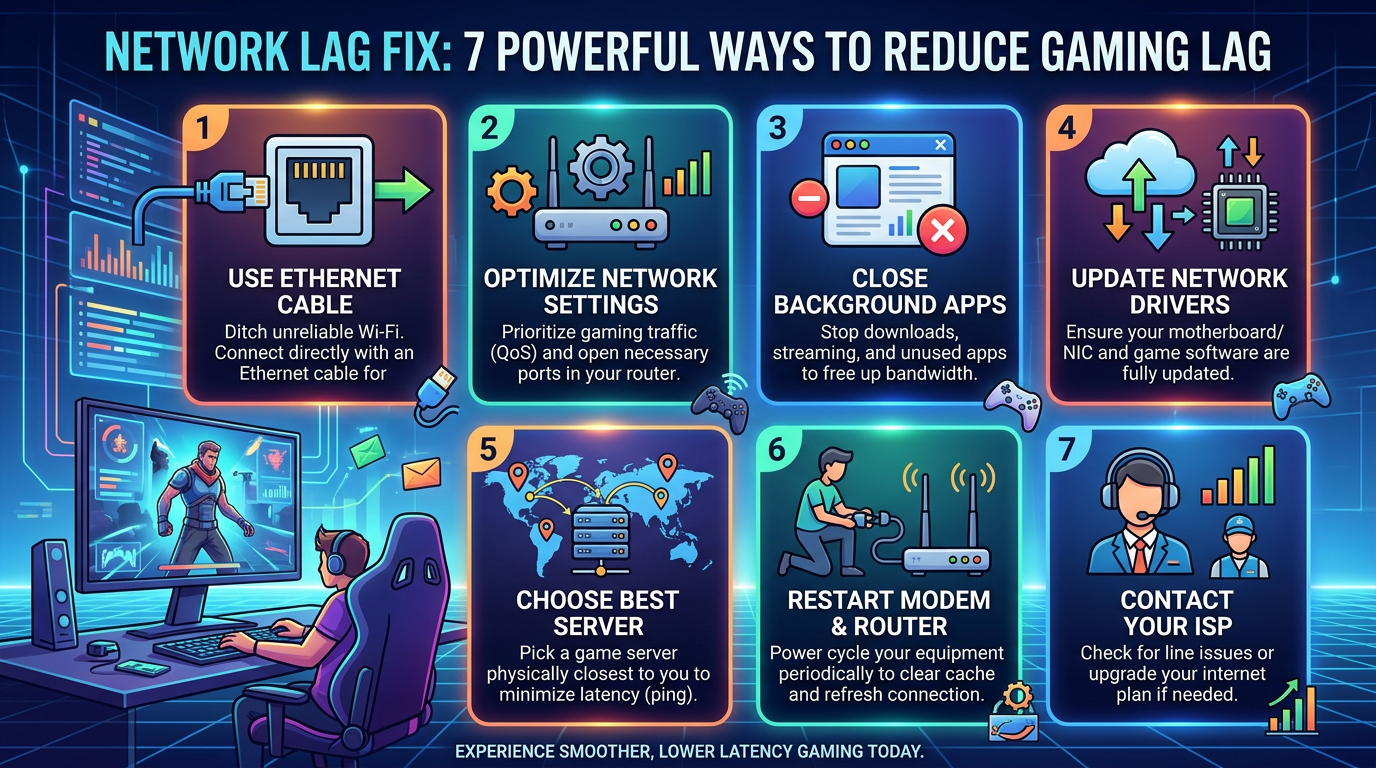
A stable gaming setup with a wired connection, optimized router, and nearby game server can help provide a smoother online gaming experience.