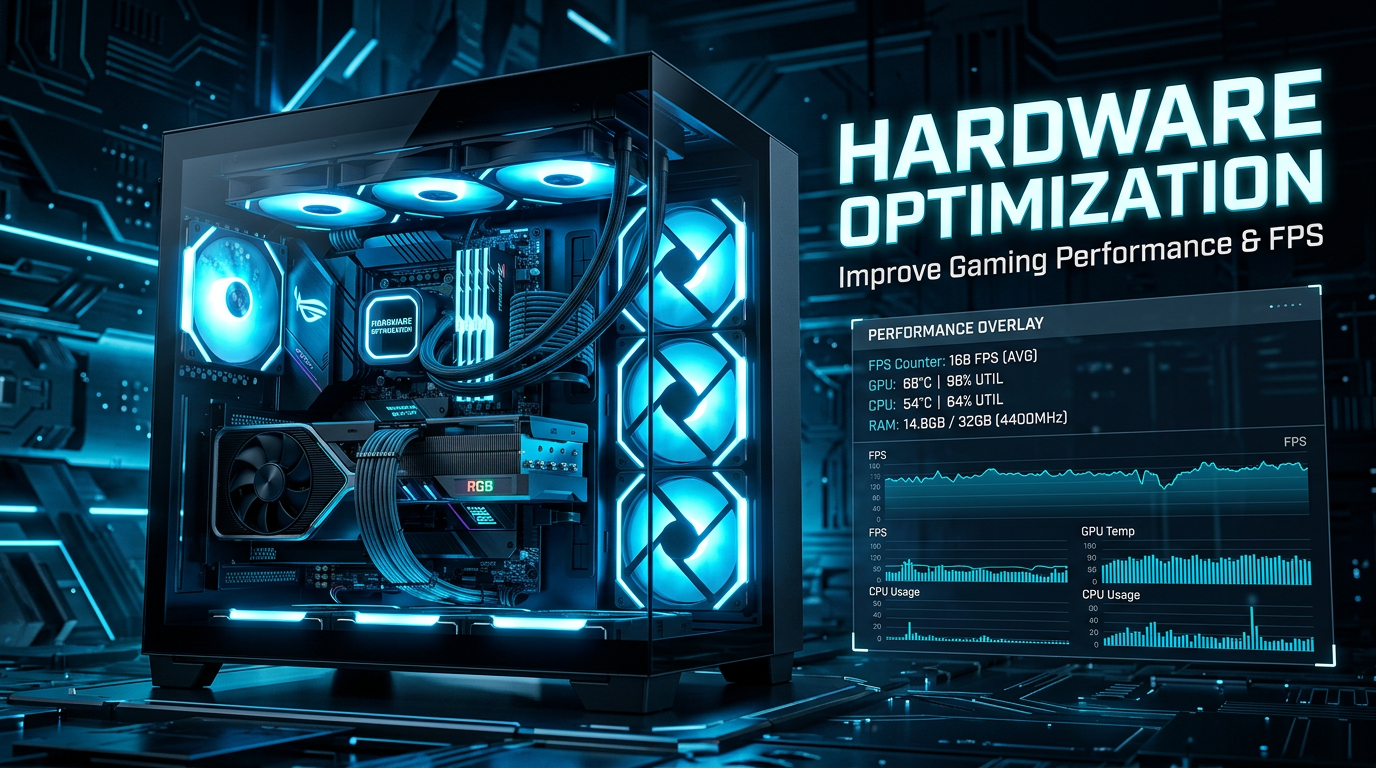
Hardware Optimization: 10 Powerful Ways to Improve Gaming Performance and FPS
Hardware Optimization is one of the most important parts of improving gaming performance on a PC. Even if you have a powerful processor and graphics card, poor cooling, insufficient RAM, slow storage, outdated drivers, or incorrect power settings can prevent your system from delivering its full potential.
Many gamers immediately think about lowering graphics settings when they experience lag, FPS drops, stuttering, or slow loading times. However, the problem may actually be related to the physical hardware inside the computer. A well-optimized system can provide better frame rates, more stable performance, faster loading times, and a smoother gaming experience.
In this guide, we will explain practical Hardware Optimization techniques that can help you improve your gaming PC without immediately spending money on expensive upgrades.
Table of Contents
- What Is Hardware Optimization?
- Check Your PC Hardware
- GPU Optimization
- CPU Optimization
- RAM Optimization
- SSD and Storage Optimization
- Improve Cooling and Airflow
- Power and Performance Settings
- Keep Hardware Drivers Updated
- Hardware Optimization for Gaming Laptops
- When Should You Upgrade Hardware?
- Hardware Optimization Checklist
- Frequently Asked Questions
What Is Hardware Optimization?
Hardware Optimization means adjusting, maintaining, and upgrading the physical components of your computer so that they work efficiently for gaming and other demanding applications.
The main components involved include your CPU, GPU, RAM, storage drive, motherboard, power supply, cooling system, and display. Each component can affect gaming performance in different ways.
For example, a powerful GPU may not perform correctly if it becomes too hot. Similarly, a fast processor may struggle when the system has insufficient RAM or too many background applications. Storage also affects game loading times and, in some modern games, asset streaming performance.
The goal is not always to make every component run at maximum power. Instead, good optimization means finding the right balance between performance, temperature, stability, noise, and power consumption.
1. Check Your PC Hardware Before Optimizing
Before changing settings, identify exactly what hardware your computer contains. Knowing your CPU, GPU, RAM capacity, storage type, and temperatures makes troubleshooting much easier.
On Windows, you can use Task Manager to check CPU, memory, disk, and GPU usage. You can also use Windows system information tools to identify your processor and installed memory.
Microsoft provides official Windows support resources covering hardware, performance, updates, storage, and troubleshooting.
Microsoft Windows Help & Learning
While playing a game, monitor CPU and GPU usage. If GPU usage is close to 95–100%, the graphics card may be the main performance limitation. If CPU usage is consistently very high while GPU usage is low, the processor or another system resource may be limiting performance.
2. GPU Hardware Optimization for Better FPS
The graphics processing unit is usually one of the most important components for gaming performance. GPU performance directly affects resolution, graphics quality, texture quality, shadows, ray tracing, and frame rate.
Keep Your GPU Driver Updated
Graphics manufacturers regularly release driver updates that can improve game compatibility, stability, security, and performance.
NVIDIA users can use the official NVIDIA App to manage graphics drivers and optimize supported games.
AMD users can use AMD Software: Adrenalin Edition to manage Radeon graphics settings and performance features.
Intel Arc users can also use Intel’s graphics software to manage supported graphics settings and game profiles.
Reduce GPU Temperature
High GPU temperatures can cause thermal throttling. When a GPU becomes too hot, it may reduce its operating speed to protect itself.
Clean dust from the PC case, make sure fans are working correctly, and ensure that hot air can escape from the case.
Optimize Graphics Settings
If your FPS is low, start with demanding settings such as ray tracing, shadows, volumetric effects, reflections, and ambient occlusion. Reducing these settings can often produce a noticeable performance improvement.
3. CPU Hardware Optimization
The CPU handles game logic, physics, artificial intelligence, background tasks, and many other processes. Some games are heavily CPU-dependent, especially large open-world games and simulation titles.
Make sure your CPU cooling system is working correctly. A clogged heatsink or failing fan can cause high temperatures and reduce sustained performance.
Intel provides official resources covering CPU optimization, Turbo Boost, cooling, monitoring, and tuning.
Intel CPU Optimization Resources
Do not attempt aggressive overclocking unless you understand CPU temperatures, voltage, stability testing, and your motherboard’s capabilities. For many users, maintaining good cooling and using stable manufacturer settings is safer than aggressive tuning.
4. RAM Hardware Optimization
RAM is another important part of gaming performance. Modern games can use a significant amount of memory, especially when running alongside browsers, Discord, streaming software, launchers, and recording tools.
For many modern gaming systems, 16GB of RAM is a practical starting point, while 32GB can provide additional headroom for demanding games and multitasking.
Use Dual-Channel Memory When Supported
If your motherboard supports dual-channel memory, installing compatible RAM modules in the recommended slots can improve memory bandwidth compared with a single-module configuration.
Check your motherboard manual before changing RAM slots. Different motherboards can use different recommended configurations.
Enable the Correct Memory Profile
Some RAM kits support performance profiles such as XMP or EXPO. When supported by the motherboard and processor platform, enabling the correct profile can allow the memory to operate at its advertised speed.
Always verify compatibility and stability before changing BIOS settings.
5. SSD and Storage Hardware Optimization
Storage speed has a major effect on game installation, loading times, Windows startup, and file access. An SSD is generally much faster than a traditional mechanical hard drive for these tasks.
If your PC still uses an HDD for modern games, moving frequently played games to an SSD can significantly improve loading responsiveness.
Keep Free Storage Space
A completely full storage drive can create performance and maintenance problems. Try to keep reasonable free space available, especially on your Windows system drive.
Remove unnecessary temporary files, old installers, unused applications, and games you no longer play.
Install Large Games on a Fast SSD
If your PC has multiple drives, consider installing demanding games on your faster SSD. This can be particularly useful for games that frequently stream large amounts of game data during gameplay.
6. Improve Cooling and Airflow
Cooling is one of the most overlooked areas of Hardware Optimization. Your CPU and GPU can only maintain high performance when temperatures remain within safe operating ranges.
Dust buildup can restrict airflow and reduce cooling efficiency. Carefully clean dust from fans, filters, heatsinks, and vents using appropriate methods.
Improve Case Airflow
A good airflow setup normally uses intake fans to bring cool air into the case and exhaust fans to remove hot air.
Avoid blocking the computer’s air vents. If your PC is placed inside a closed cabinet or pushed tightly against a wall, heat can accumulate around it.
Monitor Temperatures
Monitor CPU and GPU temperatures during demanding games. If temperatures become unusually high, investigate cooling, fan operation, dust, thermal interface material, and case airflow before increasing performance settings.
7. Power and Performance Settings
Power management can influence gaming performance, particularly on laptops. A system configured for maximum battery saving may reduce processor or graphics performance.
For laptops, connect the charger when gaming if the manufacturer recommends AC power for maximum performance.
Windows also provides power and performance settings that can be adjusted according to your workload.
Remember that higher performance can increase heat, fan noise, and power consumption. The best configuration depends on your hardware and gaming requirements.
8. Keep Your Hardware Drivers Updated
Drivers allow Windows and applications to communicate correctly with hardware components. Graphics drivers are especially important for gaming.
Download drivers from official manufacturer websites whenever possible. Avoid random driver-download websites that may bundle unwanted software.
For NVIDIA graphics, use the official NVIDIA software and driver resources. For AMD graphics, use AMD Software. For Intel hardware, use Intel’s official support and driver resources.
After installing a major driver update, test your favorite games. If a new driver causes an unexpected problem, check the manufacturer’s support information for troubleshooting options.
9. Hardware Optimization for Gaming Laptops
Gaming laptops require special attention because their compact design can make heat management more difficult than on desktop PCs.
Keep the laptop on a hard, flat surface so that the intake vents are not blocked. Avoid using demanding games on soft beds, blankets, or cushions because these can restrict airflow.
Clean the vents periodically and monitor temperatures during long gaming sessions.
For laptops with supported dedicated graphics, make sure demanding games are using the high-performance GPU rather than an integrated graphics processor when appropriate.
Also close unnecessary background applications before launching a demanding game.
10. When Should You Upgrade Your Hardware?
Optimization cannot overcome every hardware limitation. If your PC consistently struggles with modern games even after proper configuration, an upgrade may eventually be the best solution.
Consider a GPU Upgrade When:
- Your GPU is consistently running at maximum usage.
- You cannot maintain your target FPS at your desired resolution.
- Modern games require graphics features your GPU cannot handle efficiently.
- You frequently need to use very low graphics settings.
Consider a RAM Upgrade When:
- Memory usage regularly approaches your installed RAM capacity.
- Games stutter when many applications are open.
- You frequently multitask while gaming.
Consider an SSD Upgrade When:
- Your operating system is still installed on an old HDD.
- Game loading times are extremely long.
- Your storage drive is nearly full.
More Gaming Optimization Guides
For more solutions to common gaming performance problems, explore the Lag Fix Guides section on LagFixGamerHub.com.
You can also explore LagFixGamerHub.com for additional gaming performance tips, lag fixes, FPS guides, PC optimization tutorials, and troubleshooting articles.
If you are interested in useful AI tools for productivity, content creation, education, and everyday tasks, you can also visit FreeAIToolsAyoob.com. The site provides free AI tools and resources, including useful tools and kids’ games that can be helpful for families and students.
Hardware Optimization Checklist
Use this quick checklist before spending money on new hardware:
- ✔ Check CPU and GPU temperatures.
- ✔ Clean dust from the PC and cooling system.
- ✔ Check CPU and GPU usage during gaming.
- ✔ Update graphics drivers from official sources.
- ✔ Make sure games are installed on an SSD when possible.
- ✔ Keep sufficient free storage space.
- ✔ Check RAM usage while gaming.
- ✔ Use compatible dual-channel RAM configurations.
- ✔ Check supported XMP or EXPO memory profiles.
- ✔ Make sure laptop vents are not blocked.
- ✔ Use appropriate power settings while gaming.
- ✔ Close unnecessary background applications.
- ✔ Test one change at a time.
Conclusion
Hardware Optimization is not simply about buying the most expensive CPU or graphics card. A properly maintained and configured PC can deliver significantly better stability and gaming performance without requiring an immediate hardware upgrade.
Start by identifying the real bottleneck. Monitor CPU and GPU usage, check temperatures, maintain good airflow, keep drivers updated, use sufficient RAM, and install demanding games on a fast SSD. Once these basics are handled, you can consider more advanced options such as supported memory profiles or manufacturer-specific performance tuning.
Most importantly, make changes gradually and test your system after every major adjustment. This makes it much easier to identify what actually improved performance and what did not.
For more gaming optimization guides, FPS fixes, lag solutions, and PC performance tutorials, keep visiting LagFixGamerHub.com.
Frequently Asked Questions About Hardware Optimization
What is Hardware Optimization?
Hardware Optimization is the process of configuring, maintaining, monitoring, and upgrading PC components to achieve better performance, stability, cooling, and efficiency.
Can Hardware Optimization increase FPS?
Yes. Depending on the bottleneck, improving cooling, RAM configuration, GPU settings, drivers, power settings, or other hardware-related factors can improve FPS or make frame rates more stable.
Does more RAM increase gaming FPS?
More RAM does not automatically increase FPS in every game. However, insufficient RAM can cause stuttering and poor multitasking performance. Increasing RAM can help when the existing memory capacity is a limitation.
Is an SSD important for gaming?
An SSD can significantly improve game loading times and overall system responsiveness compared with a traditional HDD. It can also help modern games that frequently load assets from storage.
Should I overclock my CPU or GPU?
Overclocking can provide additional performance on supported hardware, but it can also increase heat, power consumption, and instability. Beginners should prioritize cooling, stable drivers, and safe manufacturer-supported settings before attempting advanced tuning.
How can I reduce gaming PC overheating?
Clean dust from the system, improve airflow, ensure fans are working correctly, avoid blocking vents, monitor temperatures, and consider whether the cooling solution is adequate for the CPU and GPU.
What is the best first step for Hardware Optimization?
The best first step is to identify the bottleneck. Monitor CPU usage, GPU usage, RAM usage, storage activity, and temperatures while playing the game that has performance problems. This helps you optimize the correct component instead of changing random settings.
Ready to Improve Your Gaming PC?
Start with simple Hardware Optimization steps before buying expensive components. Check temperatures, clean your system, update drivers, optimize RAM and storage, and monitor your PC while gaming.