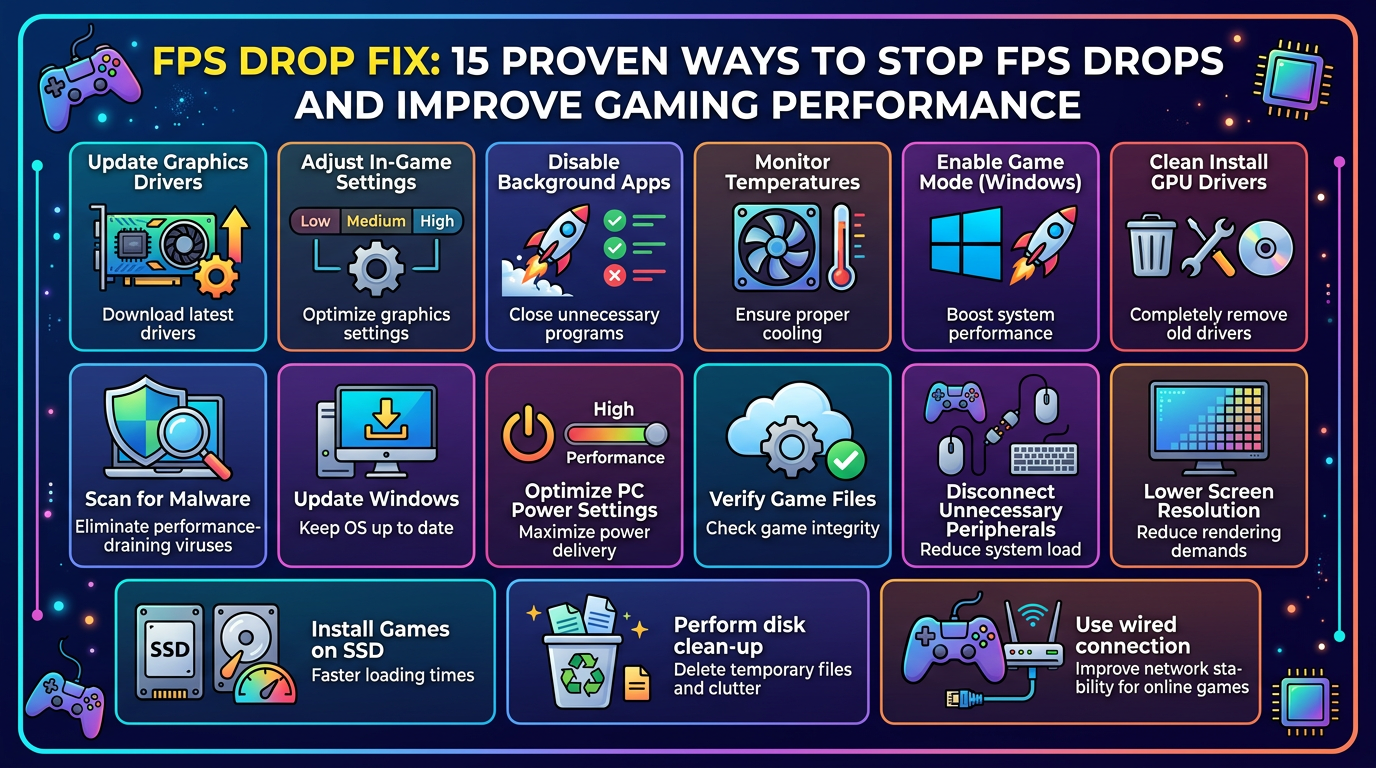
FPS Drop Fix: 15 Proven Ways to Stop FPS Drops and Improve Gaming Performance
FPS Drop Fix is one of the most common problems faced by PC gamers. A game may run smoothly at 100 FPS or more and suddenly drop to 30, 20, or even lower FPS. These sudden drops can cause screen stuttering, input delay, freezing, and an overall frustrating gaming experience.
FPS drops can happen for many different reasons. Your graphics settings may be too high, your GPU or CPU may be overheating, background applications may be consuming system resources, or outdated drivers may be affecting game performance. Windows settings, storage problems, RAM limitations, and poorly optimized game settings can also contribute to the problem.
In this guide, you will learn several practical FPS Drop Fix methods that can help improve gaming performance and make gameplay smoother.
Why Do FPS Drops Happen?
Before applying an FPS Drop Fix, it is important to understand what is causing the problem. FPS means frames per second, which represents how many frames your computer renders every second.
Higher FPS generally produces smoother gameplay. However, stable FPS is often more important than simply having a very high FPS number. For example, a stable 60 FPS can feel much better than gameplay that constantly jumps between 120 FPS and 35 FPS.
Common causes of FPS drops include:
- High graphics settings
- Outdated GPU drivers
- CPU or GPU overheating
- Insufficient RAM
- Too many background applications
- Windows performance problems
- Power-saving settings
- Slow or nearly full storage
- Game optimization issues
- Hardware that does not meet the game’s requirements
1. Check Your PC Hardware
The first step in any FPS Drop Fix process is checking whether your PC meets the game’s recommended requirements. Modern games can require powerful processors, dedicated graphics cards, and sufficient RAM.
Check your CPU, GPU, RAM, and available storage. If your hardware is significantly below the recommended requirements, software optimization may only provide limited improvements.
You can also monitor CPU and GPU utilization while playing. If the GPU is consistently running near maximum usage, reducing graphics settings may help. If the CPU is reaching its limit, lowering CPU-intensive settings and closing background programs can sometimes improve performance.
2. Lower In-Game Graphics Settings
One of the easiest FPS Drop Fix methods is reducing demanding graphics settings. You do not necessarily need to set every option to Low. Instead, start with the settings that have the biggest performance impact.
Try reducing:
- Shadow Quality
- View Distance
- Volumetric Effects
- Reflection Quality
- Ambient Occlusion
- Texture Quality
- Anti-Aliasing
- Ray Tracing
Ray tracing can have a particularly large impact on GPU performance. If your graphics card struggles with FPS drops, disabling ray tracing can provide a noticeable improvement in many games.
3. Update Your Graphics Driver
Graphics drivers play an important role in gaming performance. GPU manufacturers regularly release driver updates that can improve compatibility, fix bugs, and optimize performance for newer games.
Visit the official driver pages from your GPU manufacturer rather than downloading drivers from unknown websites.
After installing a new driver, restart your computer and test the game again.
4. Close Background Applications
Background applications can consume CPU, RAM, GPU resources, and disk bandwidth. This can result in sudden FPS drops, especially on PCs with limited hardware.
Before starting a demanding game, close unnecessary applications such as browsers with many open tabs, video editors, file compression programs, and other resource-intensive software.
You can use Windows Task Manager to identify applications that are consuming significant system resources.
5. Check CPU and GPU Temperatures
Overheating is another common reason for sudden performance drops. When a CPU or GPU becomes too hot, the system may reduce its operating speed to protect the hardware. This behavior is commonly known as thermal throttling.
If your game starts smoothly but FPS drops after several minutes, overheating should be one of the things you investigate.
Make sure your PC has good airflow. Clean dust from cooling fans and vents, and ensure that the computer is not placed somewhere that blocks ventilation.
6. Optimize Windows for Gaming
Windows includes several features that can affect gaming performance. Make sure Windows is updated and remove unnecessary startup applications.
Open Settings → Gaming and review available gaming features. You can also check Windows Graphics settings and make sure your preferred GPU is being used for demanding games when your PC has multiple graphics processors.
For more Windows-related gaming optimization guides, visit the Lag Fix Gamer Hub homepage.
7. Use High Performance Power Settings
On laptops and some desktop systems, power-saving modes can reduce CPU and GPU performance. If you are experiencing FPS drops while gaming, check your Windows power mode.
When gaming on a laptop, connect the charger before launching demanding games. Battery-saving modes can significantly reduce performance on some systems.
However, high-performance modes can increase power consumption and heat, so make sure your cooling system is working properly.
8. Free Up Storage Space
A nearly full storage drive can contribute to general system performance problems. Games also need free space for updates, temporary files, shader caches, and other data.
Try to maintain a reasonable amount of free storage space. If your game is installed on a very slow drive, moving it to a faster SSD may improve loading times and reduce some forms of stuttering, although an SSD does not automatically increase average FPS.
9. Check RAM Usage
Modern games can use a significant amount of RAM, especially when combined with browsers, Discord, recording software, and other applications.
If your RAM is nearly full while gaming, Windows may rely more heavily on virtual memory. This can contribute to stuttering and slowdowns.
Close unnecessary programs before launching your game and monitor memory usage through Task Manager. If your system consistently runs out of RAM, a hardware upgrade may be worth considering.
10. Try Fullscreen Mode
Some games can perform differently depending on whether they use fullscreen, borderless fullscreen, or windowed mode.
If you are experiencing unusual stuttering, test the available display modes. Also make sure your game’s resolution matches your monitor’s native resolution when possible.
If your GPU is struggling, lowering the resolution can provide a significant performance improvement.
11. Verify Game Files
Corrupted or missing game files can sometimes cause crashes, stuttering, texture problems, or unexpected performance issues.
If your game launcher provides a Verify Files, Repair, or similar option, use it to check the installation.
After verification completes, restart the launcher and test the game again.
12. FPS Drops vs Internet Lag
It is important to understand that FPS drops and internet lag are not the same problem.
An FPS drop happens when your computer cannot render frames quickly enough. Internet lag, commonly associated with high latency or packet loss, affects communication between your computer and the game server.
For example, if the FPS counter falls from 100 to 30, you are likely dealing with a rendering performance issue. If FPS remains stable but other players teleport or actions respond late, the problem may be related to your network connection.
For more gaming optimization and lag-related guides, explore the FPS Drop Fix guides on Lag Fix Gamer Hub.
13. Advanced FPS Optimization
If the basic FPS Drop Fix methods have not solved the problem, you can try more advanced troubleshooting.
Disable Unnecessary Overlays
Game overlays from applications such as chat, recording, or GPU utilities can sometimes cause performance problems. Temporarily disable unnecessary overlays and check whether the game’s performance improves.
Reduce Background Recording
Background recording can use CPU, GPU, RAM, and storage resources. If you do not need automatic recording, consider disabling it while gaming.
Check for Driver Conflicts
If FPS problems started immediately after a driver update, investigate whether the new driver is causing compatibility problems. In some cases, reinstalling or changing the driver version can help.
Use Game-Specific Settings
Different games have different performance requirements. A graphics configuration that works perfectly in one game may perform poorly in another. Test settings one at a time and measure the results rather than changing everything simultaneously.
14. Keep Your PC Clean and Cool
Physical maintenance is often overlooked when troubleshooting FPS drops. Dust buildup can restrict airflow and increase temperatures.
Clean your PC vents and cooling components carefully. Make sure fans are operating correctly and that the computer has enough space around its ventilation areas.
For laptops, avoid gaming on soft surfaces such as beds or thick blankets because they can block ventilation openings.
15. Use an FPS Cap for More Stable Gameplay
Sometimes an unlimited FPS setting can cause unnecessary GPU usage and temperature increases. Setting an FPS limit can help create a more consistent experience.
For example, if your monitor has a 60 Hz refresh rate, testing a 60 FPS cap may provide smoother and more consistent gameplay than allowing the FPS to fluctuate heavily.
The ideal FPS limit depends on your monitor, hardware, game, and personal preference.
Quick FPS Drop Fix Checklist
Before you start changing advanced settings, go through this simple checklist:
- Restart your PC.
- Update your GPU driver.
- Close unnecessary background applications.
- Check CPU and GPU temperatures.
- Lower demanding graphics settings.
- Disable ray tracing if necessary.
- Check RAM usage.
- Free up storage space.
- Verify game files.
- Test fullscreen and borderless modes.
- Check Windows power settings.
- Disable unnecessary overlays.
- Restart the game after major configuration changes.
Useful Resources for Gamers
If you are interested in technology, gaming, AI tools, and useful online resources, you can also explore Free AI Tools Ayoob. The website provides free AI tools and other useful resources, including a section featuring kids’ games.
Gamers can also explore more troubleshooting guides on Lag Fix Gamer Hub.
Frequently Asked Questions About FPS Drop Fix
What is the fastest FPS Drop Fix?
The fastest things to try are lowering demanding graphics settings, closing background applications, checking temperatures, updating GPU drivers, and restarting the PC. These steps solve many common performance problems.
Why does my FPS suddenly drop while gaming?
Sudden FPS drops can be caused by overheating, background processes, GPU or CPU limitations, insufficient RAM, driver problems, game optimization issues, or high graphics settings.
Can overheating cause FPS drops?
Yes. If your CPU or GPU becomes too hot, thermal throttling can reduce performance. If FPS decreases after playing for several minutes, checking temperatures is a good troubleshooting step.
Does more RAM increase FPS?
Adding RAM does not automatically increase FPS in every game. However, if your system is running out of memory, adding sufficient RAM can reduce stuttering and improve overall gaming performance.
Does an SSD fix FPS drops?
An SSD can improve game loading times and may help with some asset-streaming or stuttering situations, but it does not automatically increase average FPS. GPU and CPU performance are usually more important for rendering FPS.
Why is my FPS good at first and then suddenly becomes low?
This pattern can indicate overheating or another resource-related issue. Check CPU and GPU temperatures, clock speeds, RAM usage, and background processes while the problem occurs.
Conclusion
Finding the right FPS Drop Fix does not always require expensive hardware upgrades. In many cases, simple changes such as lowering demanding graphics settings, updating drivers, closing background applications, improving airflow, checking temperatures, and optimizing Windows can make a noticeable difference.
Start with the easiest solutions and test the game after each change. This makes it easier to identify exactly what is causing the FPS problem.
If you continue experiencing performance issues, check your hardware specifications against the game’s recommended requirements. Some modern games simply require more powerful hardware for stable performance.
For more guides about FPS drops, gaming performance, lag, stuttering, and PC optimization, visit FPS Drop Fix on Lag Fix Gamer Hub.