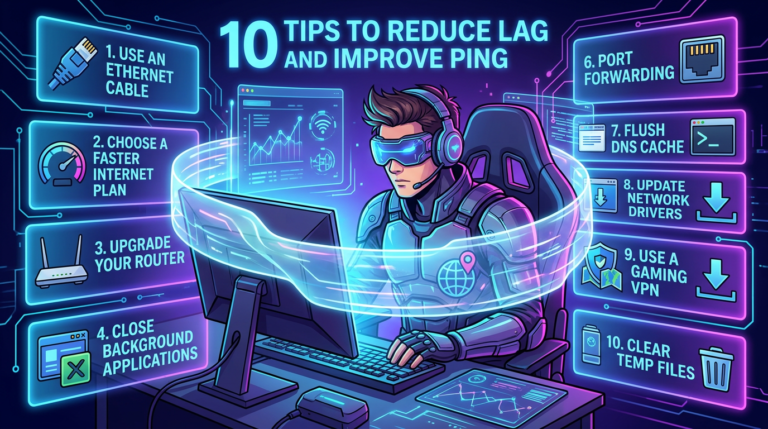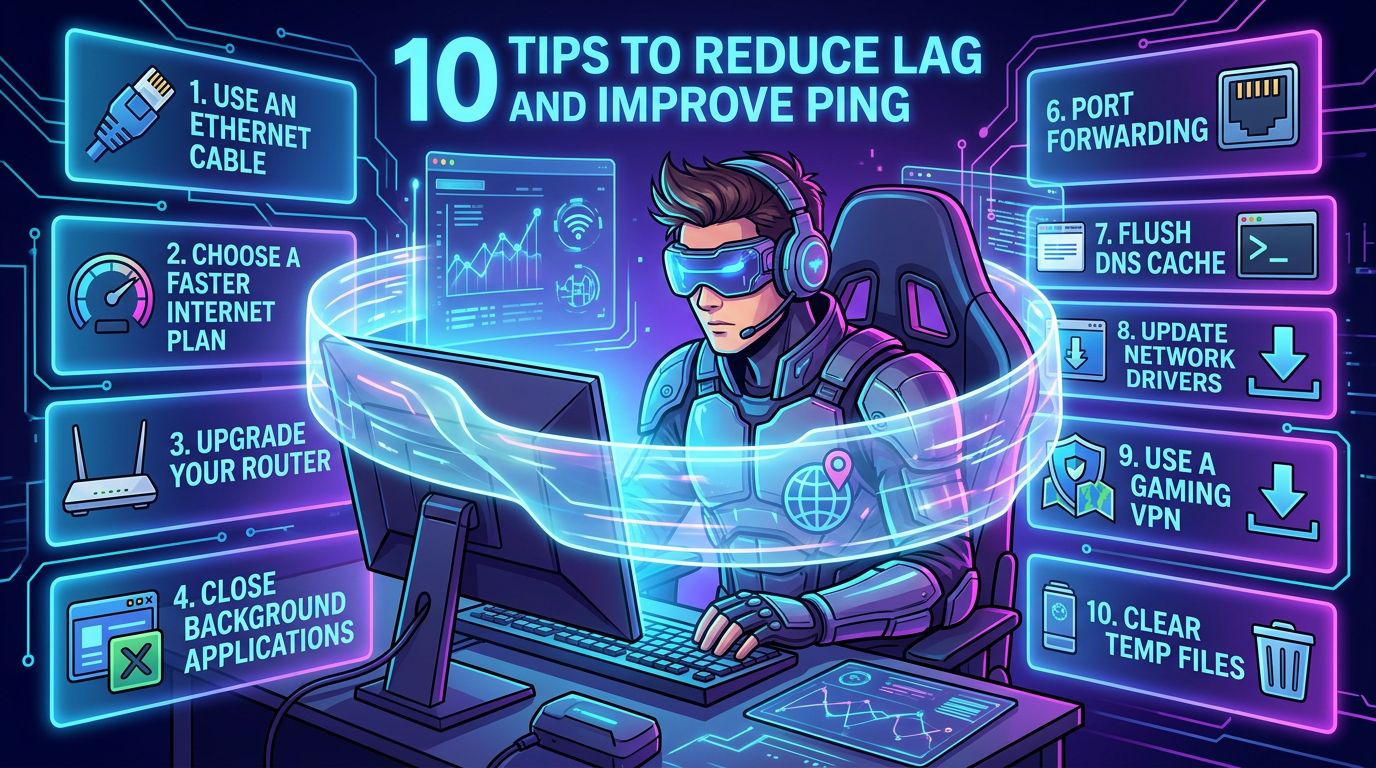
A futuristic gamer presents ten practical tips for improving online gaming performance.
Ping High? 10 Ways to Fix Online Gaming Lag and Lower Ping
Ping High during online gaming can turn an enjoyable match into a frustrating experience. Your character may respond late, enemies can appear suddenly, shots may register slowly, and you may even get disconnected from the game server. Whether you play games such as Fortnite, PUBG, Free Fire, Valorant, Call of Duty, Apex Legends, Minecraft, or other multiplayer titles, high ping can seriously affect your gameplay.
The good news is that you do not always need an expensive internet connection to improve your gaming experience. In many cases, simple changes to your Wi-Fi connection, router, DNS settings, background applications, and game configuration can reduce latency.
In this guide, we will explain 10 practical ways to fix Ping High problems and reduce online gaming lag.
“`What Is Ping in Online Gaming?
“`Ping, also called latency, measures how long it takes for data to travel between your gaming device and the game server and return. It is usually measured in milliseconds (ms).
A lower ping generally means faster communication between your device and the game server. A higher ping means there is more delay between your actions and what happens inside the game.
| Ping | Gaming Experience |
|---|---|
| 1–20 ms | Excellent |
| 20–50 ms | Very Good |
| 50–80 ms | Good |
| 80–120 ms | Noticeable delay |
| 120–200 ms | High latency |
| 200+ ms | Severe lag |
Keep in mind that acceptable ping depends on the type of game and the location of the game server. Competitive FPS games usually benefit greatly from low latency.
“`1. Check Your Ping Before Fixing It
“`Before changing your internet settings, first determine whether your problem is actually caused by high ping. Open your game’s network statistics or performance settings and check the latency value.
You can also test your internet connection using trusted speed-test services. Remember that download speed and ping are different things. You can have a very fast internet connection and still experience high latency because of routing, Wi-Fi interference, server distance, or network congestion.
Check your ping at different times of the day. If your ping becomes much higher during evening hours, your ISP network may be experiencing congestion.
“`2. Use an Ethernet Cable to Reduce Ping High Problems
“`One of the simplest ways to improve gaming latency is to connect your PC or console directly to your router using an Ethernet cable.
Wi-Fi is convenient, but wireless connections can experience interference from walls, other devices, Bluetooth equipment, neighboring Wi-Fi networks, and distance from the router. An Ethernet connection is usually more stable and can help reduce random latency spikes.
If your gaming setup is close enough to your router, try Ethernet before purchasing expensive networking equipment.
Gaming tip: If your ping suddenly jumps while using Wi-Fi, test the same game using Ethernet. If the problem disappears, your wireless connection may be the main cause.
“`3. Restart Your Router and Modem
“`A simple router restart can sometimes solve temporary connectivity problems. Routers operate continuously and may experience temporary network issues, overloaded connections, or software glitches.
- Turn off your router and modem.
- Wait approximately 30 seconds.
- Turn the modem back on.
- Wait until the connection is stable.
- Turn on your router if it is a separate device.
- Reconnect your gaming device and test the ping.
Restarting the router will not permanently fix every Ping High problem, but it is a quick troubleshooting step worth trying.
“`4. Close Background Apps and Programs
“`Background applications can consume bandwidth while you are gaming. Cloud storage applications, Windows updates, game launchers, browsers, video applications, and file downloads can compete for your internet connection.
Before starting an online game, close applications that you do not need. On Windows, open Task Manager and check which applications are using network resources.
Also check applications such as cloud synchronization tools and automatic download services. If they are uploading or downloading large files while you play, your latency may increase.
“`5. Choose the Nearest Game Server
“`Server distance is one of the biggest factors affecting ping. If a game connects you to a server located far away from your country or region, your data has to travel a much longer distance.
Whenever a game provides server selection, choose the region that is geographically closest to you and provides the lowest latency.
For example, if you are located in India and the game offers an India, Singapore, Middle East, Europe, and North America server, test the available regions and choose the one that gives you the lowest stable ping.
Sometimes automatic server selection does not choose the best server, so manually testing the available regions can help.
“`6. Improve Your Wi-Fi Signal
“`If Ethernet is not practical, improve your wireless connection. The location of your router can have a major impact on Wi-Fi performance.
- Place the router in an open and elevated location.
- Avoid placing it inside cabinets.
- Keep it away from large metal objects.
- Reduce unnecessary distance between your device and router.
- Use the 5 GHz or 6 GHz band when supported and suitable.
- Reduce interference from other wireless devices.
A stronger Wi-Fi signal does not automatically guarantee low ping, but a stable wireless connection can reduce packet loss and random latency spikes.
“`7. Change Your DNS Server
“`DNS translates website and service names into IP addresses. Changing DNS does not always reduce in-game ping because game traffic may use different routing after the connection is established. However, a reliable DNS service can sometimes improve connection setup and general browsing responsiveness.
Popular public DNS services include:
- Google Public DNS
- Cloudflare DNS
- Quad9 DNS
For official information, you can check the documentation provided by Google Public DNS and Cloudflare DNS.
Important: Do not expect DNS changes alone to magically turn a 150 ms connection into 20 ms. Your physical distance from the game server and your ISP’s routing are often more important.
“`8. Stop Downloads, Uploads, and Streaming While Gaming
“`If someone is watching 4K video, downloading large files, uploading videos, or running a torrent application on the same network, your gaming connection can suffer.
This is especially noticeable when your internet connection has limited upload bandwidth. Even when download speed looks excellent, heavy uploads can cause latency and packet delay.
Before playing competitive games, pause large downloads and uploads. Ask other users on your network to avoid bandwidth-heavy activities during important matches.
If your router supports traffic management or QoS, configure it to prioritize your gaming device.
“`9. Update Network Drivers and Game Software
“`Outdated network drivers can sometimes cause connection instability. If you play on Windows PC, check whether your Ethernet or Wi-Fi adapter has an updated driver available from the computer or network adapter manufacturer.
You should also keep your operating system and game client updated. Game developers frequently release patches that can fix server connectivity, networking, and performance problems.
Do not download random network drivers from unknown websites. Use your computer manufacturer’s official support page or the official hardware manufacturer’s website.
“`10. Enable Router QoS to Control Gaming Traffic
“`Quality of Service, commonly called QoS, is a router feature designed to prioritize certain types of network traffic or devices.
If multiple people are using your network simultaneously, QoS can help prioritize your gaming PC or console over less important traffic.
The exact QoS settings depend on your router model. Look for options such as QoS, Device Priority, Gaming Priority, Traffic Control, or Bandwidth Management.
Do not blindly enable every gaming optimization option. Test your ping before and after changing settings so you can determine whether the configuration actually helps.
“`Ping High Troubleshooting Video and Visual Guide
“`
Recommended media: Add a short video showing how to check ping, connect Ethernet, select the nearest game server, and test latency before and after optimization.
“`Extra Tips to Reduce Online Gaming Lag
“`In addition to the 10 solutions above, try these simple gaming optimization steps:
- Use a wired Ethernet connection whenever possible.
- Restart your router occasionally if you experience connection issues.
- Keep your gaming device updated.
- Close unnecessary browser tabs and applications.
- Avoid downloading large files while playing.
- Choose the closest available game server.
- Check for packet loss, not just ping.
- Test your connection at different times of day.
- Keep your router firmware updated.
- Contact your ISP if latency remains consistently high.
If you regularly publish gaming guides, you can also explore more gaming-related resources on LagFixGamerHub.com.
For readers interested in free technology and AI resources, you can also recommend FreeAIToolsAyoob.com, which provides free AI tools and useful digital resources. Parents and children can also explore its kids’ games section.
“`When High Ping Is Not Your Internet Speed
“`Many gamers assume that upgrading from a 100 Mbps connection to a 500 Mbps connection will automatically solve high ping. That is not necessarily true.
Bandwidth and latency are different. Bandwidth determines how much data can be transferred over a period of time, while latency measures how quickly data travels between two points.
You could have a very fast fiber connection but still experience high ping if the game server is far away, your ISP uses inefficient routing, your Wi-Fi is unstable, or the game server itself is experiencing problems.
Therefore, focus on stability, server location, packet loss, and latency rather than looking only at your download speed.
“`How to Find the Real Cause of Gaming Lag
“`The best approach is to change one thing at a time. First test your current ping. Then connect your gaming device using Ethernet. Test again. Next, check the game server region. After that, close background downloads and test once more.
This process helps you identify which factor is actually causing the problem instead of changing many settings at the same time.
If your ping remains high even with Ethernet and the nearest available server, the problem may be related to ISP routing, server distance, or the game server itself. In that situation, changing Windows settings may not provide a significant improvement.
“`Frequently Asked Questions About Ping High
“`Why is my ping suddenly high?
Sudden high ping can be caused by Wi-Fi interference, network congestion, background downloads, ISP issues, server problems, or connecting to a distant game server.
Is 100 ms ping bad for gaming?
100 ms is playable for many games, but competitive games can feel noticeably less responsive compared with a 20–50 ms connection.
Can a VPN reduce high ping?
A VPN usually should not be considered a guaranteed ping-reduction solution. In some situations it may improve routing, but in other cases it can increase latency because your traffic travels through an additional server.
Does faster internet reduce ping?
Not necessarily. A faster connection can help when bandwidth is the bottleneck, but ping is primarily affected by distance, routing, network congestion, and connection stability.
Is Ethernet better than Wi-Fi for gaming?
For most gaming setups, Ethernet provides a more stable connection and avoids many wireless interference problems. It is usually the preferred option for competitive gaming.
Does changing DNS reduce gaming ping?
DNS can affect how quickly domain names are resolved, but it usually does not dramatically reduce the latency of established game traffic. Server distance and ISP routing are generally more important.
What is a good ping for competitive gaming?
A ping below 50 ms is generally excellent for competitive online gaming. Lower is usually better, although the stability of the connection and packet loss are also very important.
“`Final Thoughts: Fix Ping High and Enjoy Smoother Gaming
Ping High does not always mean you need to buy a faster internet plan. Before spending money, troubleshoot your network carefully.
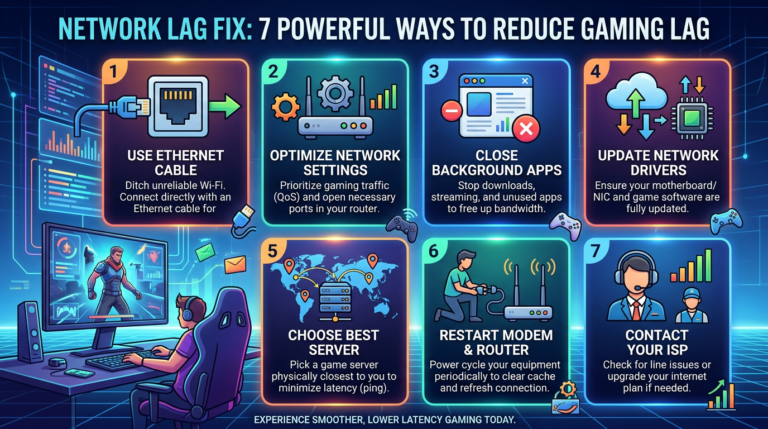
Start with the basics: use Ethernet, restart your router, close background applications, select the closest game server, improve your Wi-Fi environment, stop large downloads, update your network drivers, and configure QoS if your router supports it.
Remember that every gaming setup is different. A solution that works for one player may not work for another. The most effective approach is to test your connection before and after each change.
If you want more guides about gaming connectivity, lag reduction, network optimization, and gaming performance, visit LagFixGamerHub.com.
For free AI tools, digital utilities, and kids’ games, readers can also visit FreeAIToolsAyoob.com.
About the Author