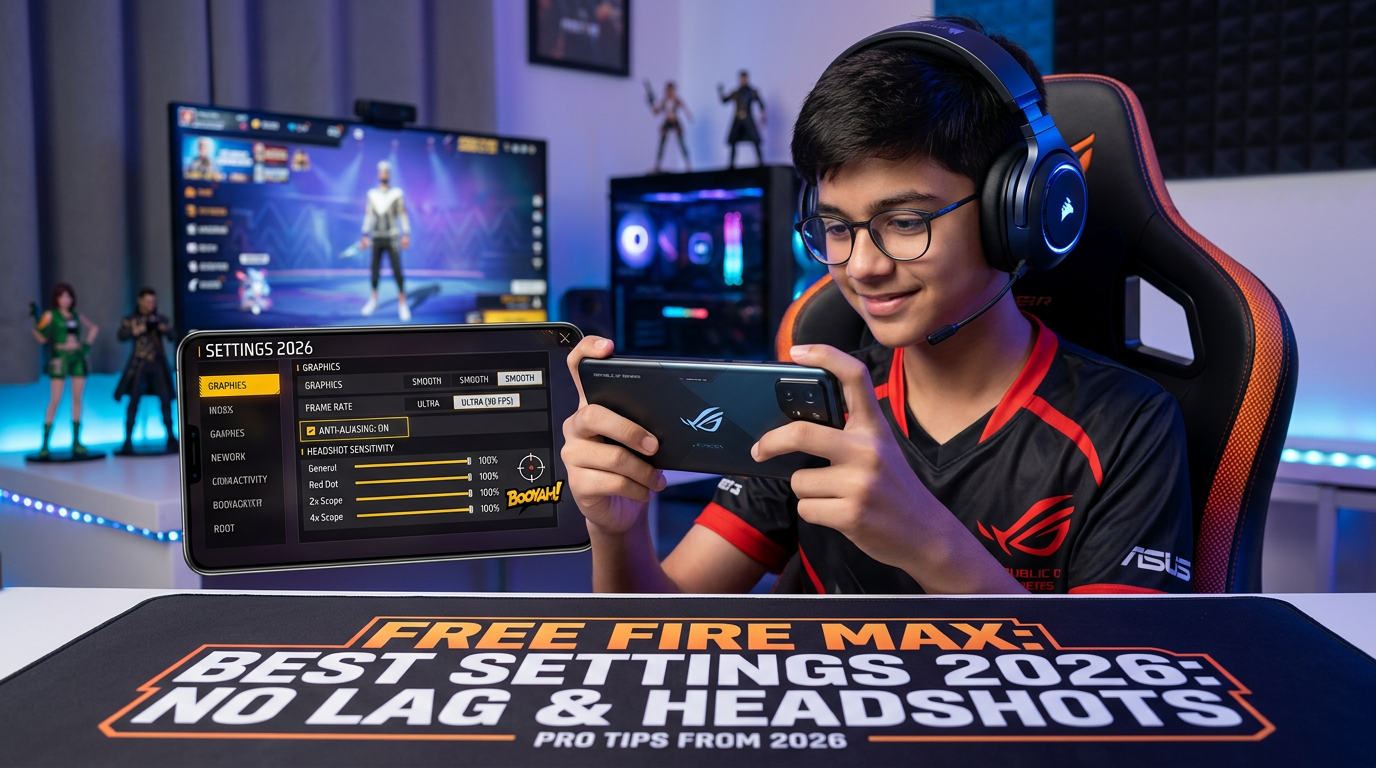
A focused mobile gamer tests Free Fire settings in a colorful esports-inspired setup.
Free Fire Max Best Settings 2026: No Lag & Better Headshots Guide
Getting outplayed because of lag, or missing headshots because your sensitivity feels off? Free Fire Max has a ton of settings buried in its menus, and most players never touch the ones that actually matter. This guide walks through the exact settings you need for smooth, lag-free gameplay and sharper aim — whether you’re on a budget phone or a flagship.
Why Free Fire Max Lags or Feels Laggy
- Auto-selected Graphics Settings – the game often picks settings that don’t match your phone’s real capability
- High Resolution + Low RAM – a common mismatch on budget devices
- Background Apps – eating into available RAM
- Poor Network Connection – causes rubber-banding and delayed hit registration
- Sensitivity Mismatch – not lag, but feels like it when your aim can’t keep up
1. Best Graphics Settings by RAM
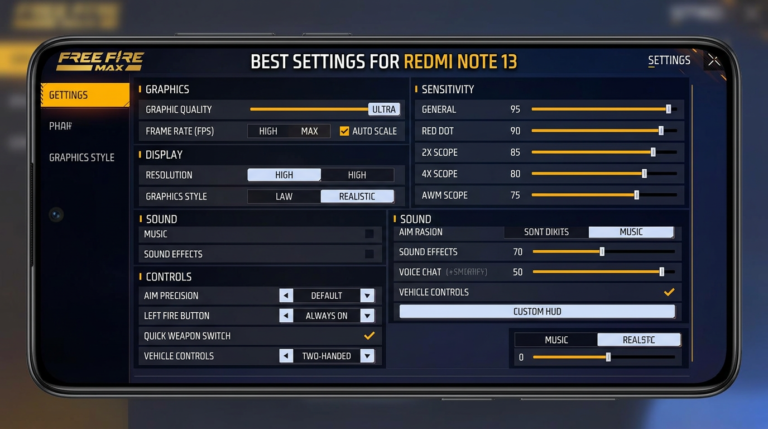
Go to Settings > Graphics in-game and adjust manually instead of using Auto:
| RAM | Graphics Quality | Frame Rate |
|---|---|---|
| 2-3 GB | Smooth | Medium |
| 4 GB | Smooth/Balanced | High |
| 6 GB | Balanced/HD | High/Ultra |
| 8GB+ | HD/Ultra HD | Ultra |
Lower graphics quality directly reduces the load on your GPU, which means more consistent frame rates during intense fights.
2. Best Sensitivity Settings for Headshots
These are a solid starting point most players find comfortable — fine-tune slightly based on your own hand feel:
- General: 100
- Red Dot: 90-95
- 2x Scope: 60-65
- 4x Scope: 40-45
- Sniper Scope: 25-30
- Free Look: 100
Higher scopes need lower sensitivity because small movements are magnified. Practice in Training Ground before jumping into ranked matches after changing sensitivity.
3. Controls Layout for Faster Reactions
- Enable 2-Finger Claw or 4-Finger Claw layout if your phone screen is large enough — it lets you jump/shoot without lifting your thumb off the joystick
- Move the Fire Button slightly lower for a more natural thumb reach
- Enable Gyroscope for fine aim adjustments, especially useful for close-range headshots
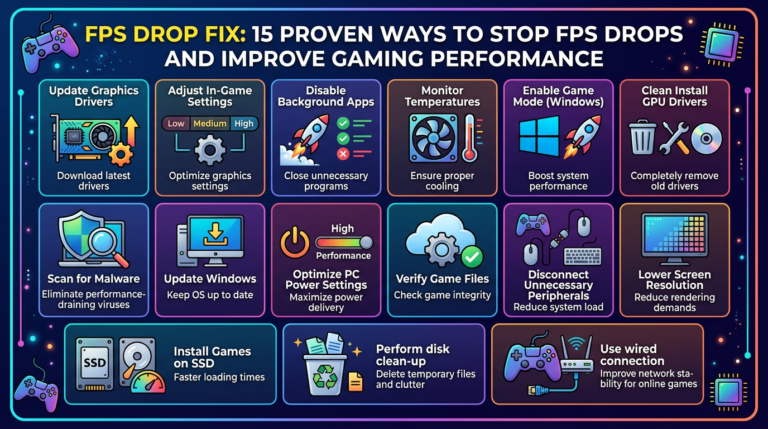
4. Reduce Background Load
Close all unnecessary apps before launching Free Fire Max. If your phone has a Game Booster or Game Mode feature, turn it on — it frees up RAM automatically and can prevent notifications from interrupting gameplay.
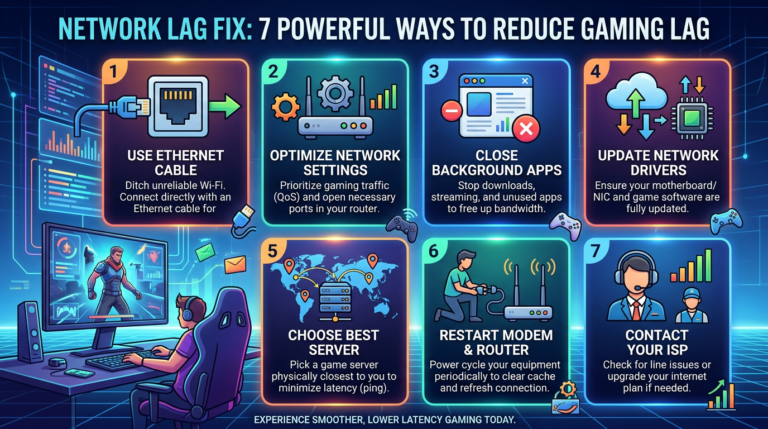
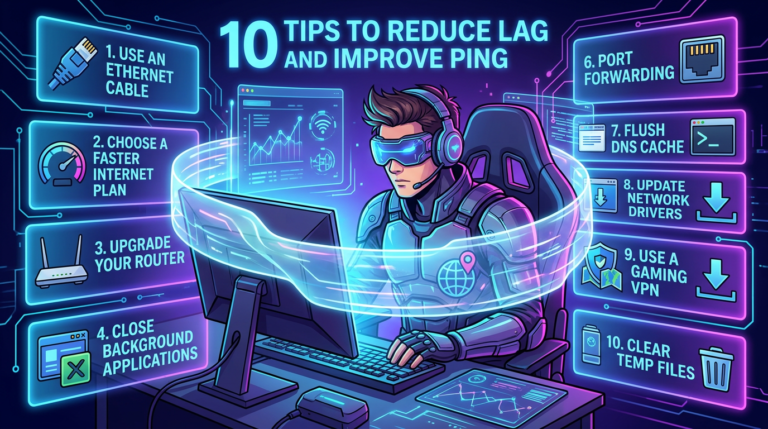
5. Fix Network Lag
- Prefer WiFi over mobile data when possible
- If using mobile data, confirm you have strong 4G/5G signal
- Avoid playing while other devices are streaming or downloading on the same network
- Restart your router if ping has been consistently high
6. Clear Cache Regularly
Go to Phone Settings > Apps > Free Fire Max > Storage > Clear Cache. Do this once a week — it clears out temporary files without touching your account progress or in-game purchases.
7. Keep the Game Updated
Garena regularly ships performance patches alongside new content updates. Playing on an outdated version is a common, overlooked cause of lag and stutter.
Frequently Asked Questions (FAQ)
What is the best graphics setting for headshots in Free Fire Max?
Smooth or Balanced graphics with High/Ultra frame rate gives the most responsive, consistent gameplay — better for reaction time than high-detail visuals.
Does higher sensitivity mean better headshots?
Not necessarily. Too-high sensitivity makes it harder to control fine aim. The settings above are a balanced starting point most competitive players use.
Why does Free Fire Max lag even on good phones?
Usually it’s a network issue, background apps, or outdated game version rather than the phone’s hardware itself.
Final Thoughts
Combining the right graphics settings, a comfortable sensitivity setup, and a stable network connection makes the biggest difference in Free Fire Max. Try these settings in Training Ground first, then adjust slightly to match your own playstyle. Comment your phone model if you want a personalized settings recommendation!
Common Mistakes to Avoid
Many players make the mistake of copying pro-player sensitivity settings directly without adjusting for their own screen size or thumb reach. What works for a 6.7-inch flagship display won’t necessarily work the same on a smaller budget phone. Similarly, setting Graphics Quality to HD just because your phone “can handle it” often backfires — a stable 60 FPS on Balanced graphics will always beat a stuttering 90 FPS on HD during a close-range gunfight. Test any new setting in a few casual matches before taking it into ranked, since muscle memory takes a match or two to adjust.
About the Author